How to Organize Computer Files So You Can Find Them
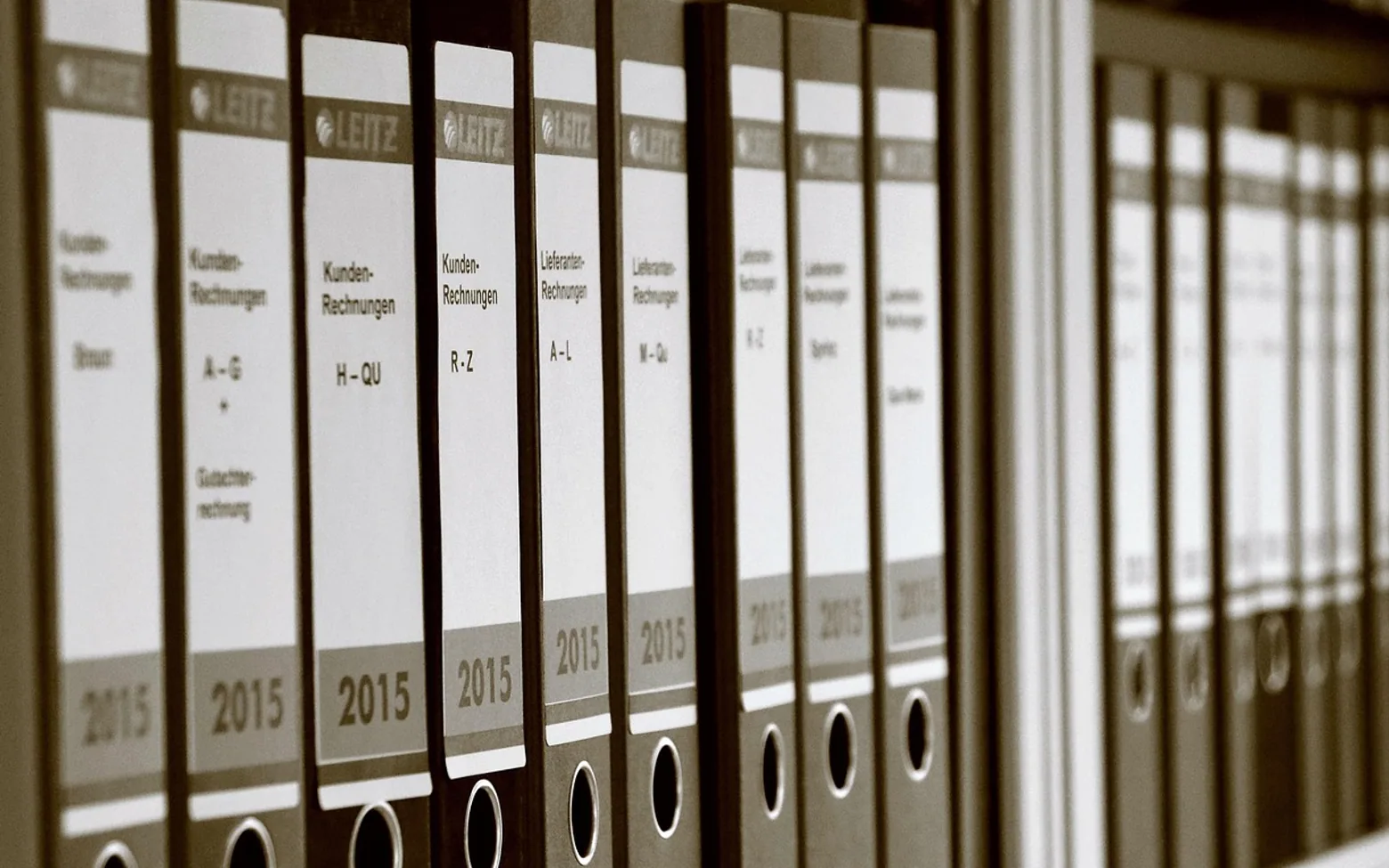
Most people do not decide to have messy files. It happens gradually: a download saved to the desktop, a document called "final2", a folder made in a hurry and never used again. After a few years, finding last spring's invoice or a photo of a contract means scrolling and guessing. The fix is not a complicated system but a handful of rules applied consistently.
The approach below works on Windows, macOS and Linux, and in cloud storage services that mirror a folder on your computer.
Start with a small number of top-level folders
Choose the main areas of your life or work and give each one a folder. Five to eight is a comfortable range; more than that and the top level becomes a list you have to scroll. A home user might pick something like this:
- Admin – bills, contracts, tax papers, insurance, bank letters.
- Work – one subfolder per client, employer or project.
- Home – manuals, receipts for appliances, renovation plans.
- Photos and video – sorted by year, then by event.
- Learning – courses, notes, reference material.
- Archive – finished projects and old years you rarely open.
Keep the structure shallow. Three or four levels of folders are usually plenty. If you find yourself clicking through six folders to reach a file, the system is working against you.
Name files so they sort themselves
A good file name tells you what the file is without opening it, and lines up neatly in a folder listing. A reliable pattern is date – subject – detail, with the date written year first:
| Instead of | Try |
|---|---|
| Scan001.pdf | 2026-03-14 Car insurance renewal.pdf |
| Final FINAL report.docx | 2026-09 Quarterly report v3.docx |
| IMG_4471.jpg | 2026-07-02 Kitchen before works.jpg |
| invoice.pdf | 2026-05 Invoice 041 client name.pdf |
Writing dates as year-month-day means alphabetical order is also chronological order, on every system. Avoid special characters such as slashes, colons and question marks, which some systems and cloud services do not accept in file names.
Use version numbers, not "final"
Documents that go through several drafts collect names like "final", "final-new" and "final-really". Add a short version number instead, such as v1, v2, v3, and move superseded drafts into an "old versions" subfolder once the work is done. Many cloud services and office programs also keep version history automatically, which is worth learning to use.
Give new files somewhere to land
Downloads, attachments and scans arrive all day, and stopping to file each one is unrealistic. Instead, let them collect in a single place – the Downloads folder or a dedicated "Inbox" folder – and sort that folder on a regular schedule. The desktop should not be the landing spot; files left there tend to stay for good.
A weekly and monthly routine
- Weekly, about ten minutes. Empty the inbox folder: rename files that matter, move them to their home and delete the ones you no longer need.
- Monthly. Look through the desktop and any folder that has grown untidy. Move finished projects into the archive.
- Yearly. Create the new year's folders where you sort by year, and review what can be deleted or moved to external storage.
The same habit of a fixed review slot is what keeps a household budget useful too; our guide on making a budget spreadsheet from scratch uses exactly that rhythm.
Let search and shortcuts do some of the work
Good names make the built-in search far more useful, because you can type a client name or a year and see the right files at once. A few more helpers are built into most systems:
- Favourites or Quick access. Pin the four or five folders you open every day to the sidebar of the file manager.
- Tags or colour labels. Useful for marking files that cut across folders, such as anything needed for this year's tax return.
- Recent files. Office programs list what you opened lately, which saves hunting for work in progress.
Back up the structure you built
An organised folder tree is only valuable if it survives a broken laptop or a stolen phone. Keep at least one copy on a separate device, such as an external drive, and ideally another off-site, for example in a cloud service. Check now and then that the backup actually contains recent files and can be opened. A sync service that mirrors your folders is convenient, but if a file is deleted or damaged on the computer, the change can be copied to the cloud as well, so it is not a full replacement for a backup.
Start small
There is no need to reorganise years of files in one weekend. Set up the new structure, use it for everything from today, and move older material across when you next need it. Within a few months, the files you actually use will have found their place. For more practical guides, see the Tech desk.
House standards
Lines we do not cross in an article
A handful of commitments that every piece on the weekly is held to.
Statistics, studies and quotes appear only when they can be traced to a public source; otherwise the idea is put in words.
Money, property and legal pieces explain how things usually work and say when rules differ by country.
Software steps name the version or device they were checked on whenever menus vary.
A brand mentioned in a guide illustrates the topic and is not a ranking.
Warnings sit next to the risky step, not in a footnote at the bottom of the page.
Further rows here: Tech
| Entry | Filed | Title | min |
|---|---|---|---|
| 38 | How to Clear the Cache in Chrome | 4 min | |
| 31 | France’s IPTV Boom: Unlocking More Choice and Flexibility | 2 min | |
| 30 | How IPTV Is Redefining On-Demand Viewing in France | 2 min | |
| 29 | Automated Trading vs Handmatig Beleggen: Wat Levert Meer Op? | 2 min | |
| 26 | From Search to Storefront: Choosing a Local SEO Service That Drives Real Visits | 2 min |